Quick Start with mcp-clients Python Package
What is Model Context Protocol (MCP)?
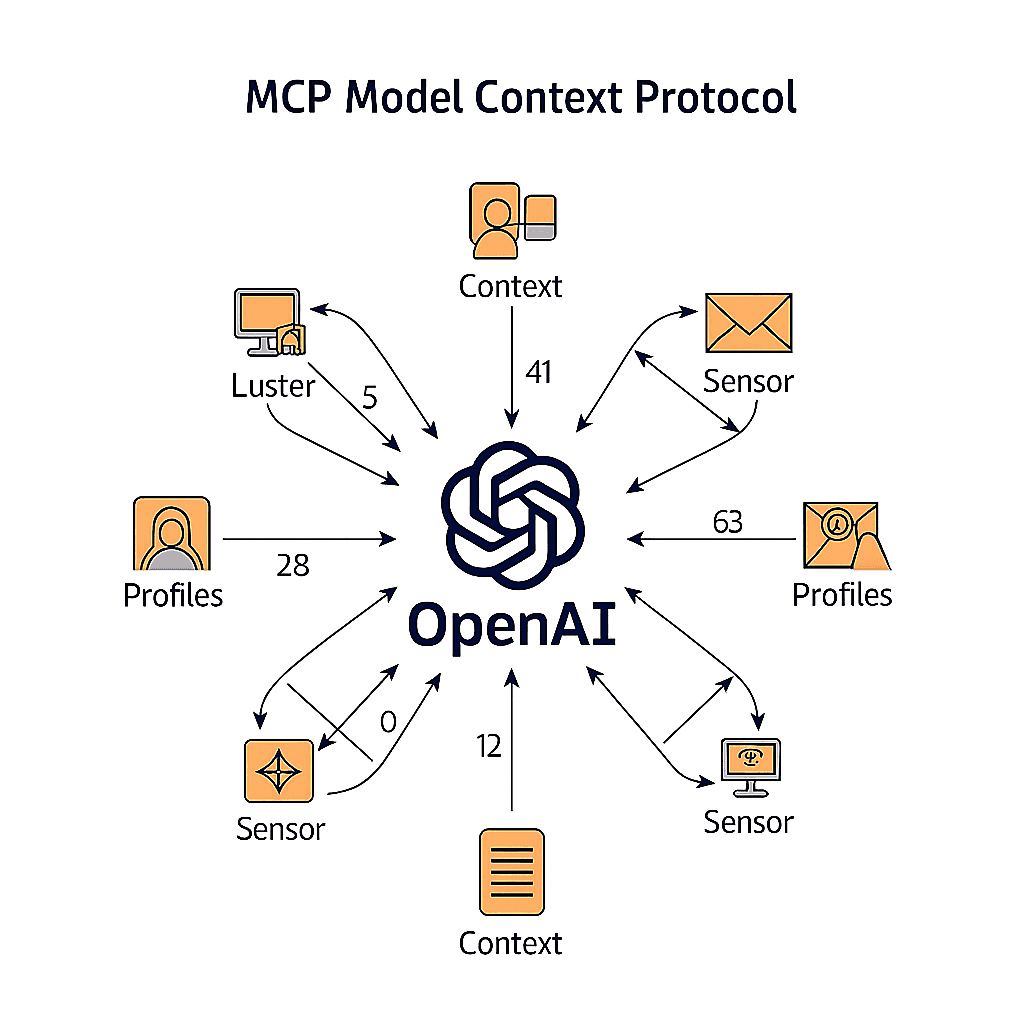
The Model Context Protocol (MCP) is an open standard that enables seamless integration between AI applications and external data sources and tools. Think of it as a bridge that allows Large Language Models (LLMs) to interact with your databases, APIs, file systems, and other resources in a secure and standardized way.
MCP addresses one of the biggest challenges in AI development: giving language models access to dynamic, real-time information and the ability to take actions in the real world. Instead of being limited to their training data, AI models can now:
- Access live data: Connect to databases, APIs, and file systems
- Use tools: Execute functions, run scripts, and interact with external services
- Maintain context: Share information across different tools and resources
- Stay secure: Implement proper authentication and authorization
The protocol consists of three main components that work together to create powerful AI applications:
MCP Servers
MCP servers are the backbone of the protocol - they expose resources, tools, and prompts that AI models can use. These servers act as intermediaries between your AI application and external systems. For example, you might have:
- A database server that provides read/write access to your application data
- A file system server that allows the AI to work with documents and files
- A web API server that connects to third-party services like GitHub or Slack
- A tool server that provides specialized functions for data analysis or automation
MCP Clients
MCP clients are the AI applications that consume the capabilities provided by MCP servers. They connect to servers, discover available resources and tools, and use them to enhance their functionality. The mcp-clients Python package we'll explore in this guide makes it incredibly easy to build these clients.
Why MCP Matters
Before MCP, integrating AI with external systems required custom implementations for each use case. MCP provides a standardized approach that:
- Reduces complexity: One protocol works with multiple data sources and tools
- Improves security: Built-in authentication and permission management
- Enables interoperability: Different AI models can use the same MCP servers
- Accelerates development: Focus on your application logic, not integration details
Now that you understand the foundation, let's dive into building your first MCP client application using the mcp-clients Python package.
Prerequisites
Before you start:
- Python 3.12 or higher installed on your system
- Basic familiarity with Python and async programming
- A Gemini API key (get one at Google AI Studio)
Step 1: Set Up Your Project Environment
Let's create a new project directory and set up a clean Python environment:
mkdir gemini-client
cd gemini-client
Initialize the Project with uv
We'll use uv for fast Python package management. If you don't have uv installed, you can install it with:
curl -LsSf https://astral.sh/uv/install.sh | sh
Now initialize your project:
uv init .
Create and Activate Virtual Environment
uv venv
source .venv/bin/activate  # On Windows: .venv\Scripts\activate
Install Required Dependencies
uv add mcp-clients python-dotenv
Step 2: Configure Environment Variables
Create a .env file in your project directory to store your API key securely:
touch .env
Add your Gemini API key to the .env file:
GEMINI_API_KEY=your_actual_gemini_api_key_here
Important: Never commit your .env file to version control. Add it to your .gitignore:
echo ".env" >> .gitignore
Step 3: Create Your First MCP Client
Create a new Python file called main.py:
import asyncio
from dotenv import load_dotenv
from mcp_clients import Gemini

load_dotenv()

async def main():
    client = await Gemini.init(
        server_script_path="path_to_your_mcp_server_script.py",
    )

    try:
        await client.chat_loop()

    except KeyboardInterrupt:
        print("\n👋 Goodbye! Thanks for using MCP Client.")
    except Exception as e:
        print(f"An error occurred: {e}")
    finally:
        await client.cleanup()

if __name__ == "__main__":
    asyncio.run(main())
Step 4: Understanding the Code
Let's break down what this code does:
Environment Setup
from dotenv import load_dotenv
load_dotenv()
This loads your API key and other configuration from the .env file.
Client Initialization
client = await Gemini.init(
    server_script_path="path_to_your_mcp_server_script.py",
)
This creates a connection between your Gemini AI client and an MCP server that provides tools and resources.
Interactive Chat Loop
await client.chat_loop()
This starts an interactive session where you can chat with the AI, and it can use the tools provided by your MCP server.
Proper Cleanup
finally:
    await client.cleanup()
This ensures all connections are properly closed when the application exits.
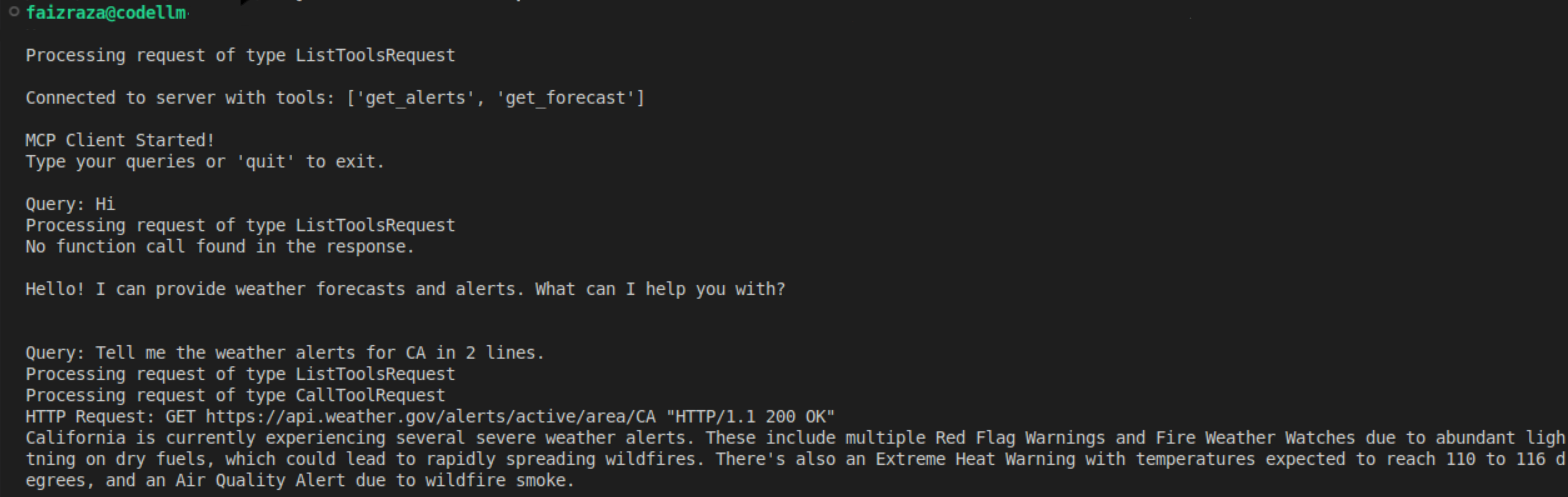
Step 5: Running Your Client
With everything set up, you can now run your MCP client:
python main.py
Terminal Output
Next Steps
Now that you have a working MCP client, you can:
- Create custom MCP servers to expose your own tools and data
- Integrate multiple servers for complex workflows
- Build specialized AI applications for your specific use cases
- Explore the ecosystem of existing MCP servers and tools
Why Choose mcp-clients?
The mcp-clients package is designed with simplicity and power in mind:
- Quick setup: Get started in minutes, not hours
- Plug-and-play: Minimal configuration required
- Production-ready: Built with error handling and security in mind
- Well-documented: Clear examples and comprehensive guides
- Community-driven: Open source and actively maintained
Get Involved
If you found this guide helpful and want to contribute to the ecosystem:
⭐ Star the project on GitHub: mcp_clients
Your support helps keep this project active and motivates continued development of new features and improvements!